Instruction guide
Read the build, one step at a time.
Understand numbered steps, new pieces, colors, layer views and PDF pages in a Lingo Brick digital building guide.
Begin with the right size and version.
Open the instructions for the size you are viewing. A small, medium or large design can use a different layout and different parts. Do not mix a parts list from one size with the booklet from another.
Follow the numbered building steps.
Check the new pieces and their colors for the current step, then compare their placement with the pieces already shown. Rotate the online preview when a connection is hard to see.
Practice with one complete example.
Open the Little duck PDF and parts list linked below. They belong to the same 274-piece medium layout: 70 building steps and a 44-page booklet. Compare the pieces added on the pictured instruction page with the assembled view; do not read the page number as the step number.
In this sample CSV, one row reads Part ID 3024, Plate 1 × 1, Color ID 19, Tan, Quantity 37, Availability Not verified. The quantity describes that part-and-color combination across the design, not the number added in a particular step.
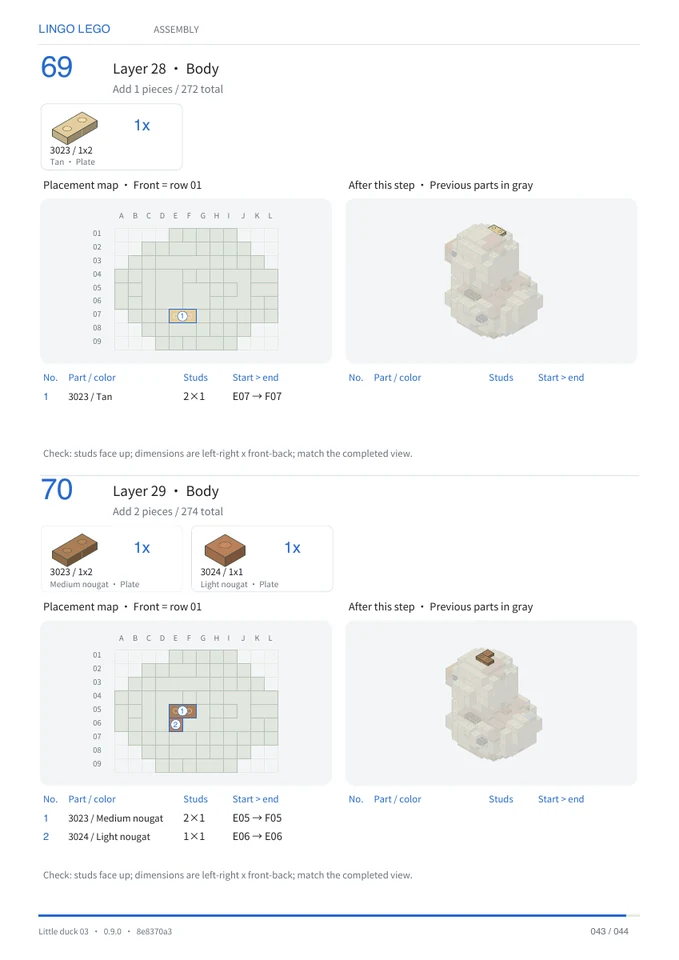
Little duck · medium · matching public PDF and CSV. This is a digital instruction example, not evidence of a physical test build.
| Column | Meaning | Sample value |
|---|---|---|
| Part ID / Description | The digital part type | 3024 / Plate 1 × 1 |
| Color ID / Color | The design color label | 19 / Tan |
| Quantity | Count of that part and color in this layout | 37 |
| Availability | Whether stock has been verified | Not verified |
Layers and steps are different views.
The layer animation shows the design appearing by layer. The numbered instruction steps divide that design into smaller additions. A logical layer number is not a physical height measurement.
Use the parts list as a design inventory.
The CSV records part names, colors and quantities for the design. It does not check your personal inventory or quote a purchase. Keep the corresponding PDF and CSV together.
Read the review notes before assembly.
If connectivity, simplified pressure or assembly needs review, examine the indicated areas. Software checks do not validate stud grip, friction and all physical construction states.
If a file is still being prepared.
Use the online steps and parts list while the PDF or ZIP is preparing. Return to the same model and selected size to check the file state. If preparation reports a failure, use the available retry or contact support with the model and size; do not create a new model just to request its files again.
Before leaving, check your browser’s download list or chosen folder. A ready file or a download button click alone does not establish that your device saved it.
Reviewed by the Lingo Brick team · Updated